


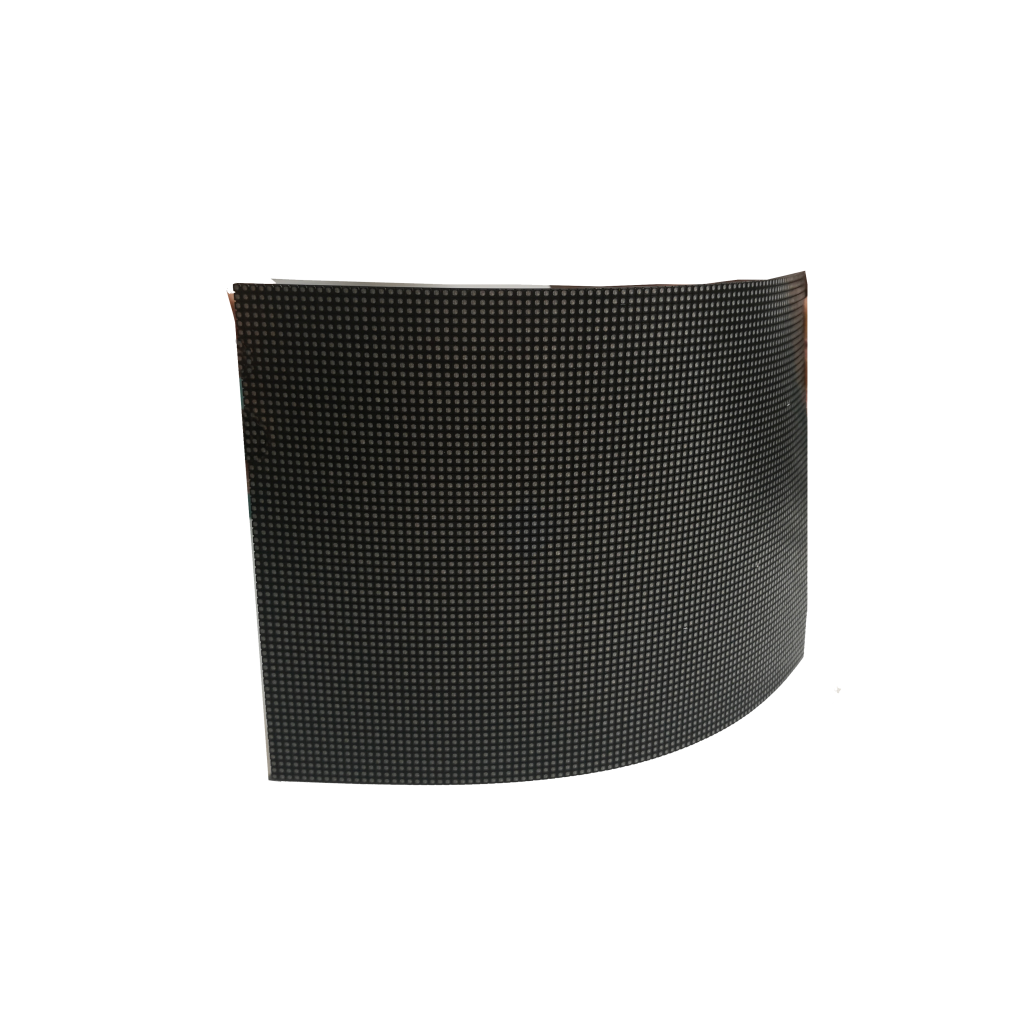


When designing a spherical LED display for events, prioritize diameter (3-5m for mid-sized venues) to balance visibility and space, pixel pitch (2.5-3.5mm) for sharp visuals, and 160° horizontal viewing angle to engage audiences; ensure content adapts to curved surfaces and use IP65-rated casing for outdoor durability.
Pick the Right Size
For intimate gatherings (50–100 people), a 2–2.5m diameter works best—place it 3–5m from viewers, and text or logos (minimum 20cm tall) stay readable. For medium crowds (100–500 attendees), aim for 3–4m; at 6–8m viewing distance, this size keeps facial expressions in videos clear (no pixelation). Large events (500–2,000 people) need 4.5–5.5m spheres; beyond 10m, you’ll want 1080p content (1920×1080 pixels) to avoid blurry details—if you use 4K (3840×2160), the screen’s pixel density (120 PPI) makes even small text pop.
Pixel pitch (distance between LEDs) of 2.5mm suits 3–4m screens: at 5m, viewers see 50% sharper images than with 3.5mm pitch (common in cheaper displays). But 2.5mm costs 20–30% more per square meter (1,500 vs. 1,100 for 3.5mm). For 5m+ spheres, 3.5mm is practical—beyond 8m, the difference in sharpness drops to 10%, so you save 800/m² without sacrificing viewer experience.
A 3m sphere needs 4.5m ceiling height if suspended (includes 0.5m for mounting brackets); floor-standing models require 2m of clearance from walls to prevent “cropping” of the screen’s edges. For 5m spheres, ceiling height jumps to 6m—renting a venue with this spec can add 2,000/day to your budget.
Most event videos are 16:9 (1920×1080), but a 3m sphere wraps that image around a 360° curve, stretching it to ~4.2 million pixels. If your content is low-res (720p), the sphere will stretch pixels to ~1.8 million, making text look “stretched thin”—test content on a sample screen first: 70% of clients report last-minute fixes when they skip this step.
A 3m sphere weighs ~250kg (needs 4+ people to lift); a 5m model hits 500kg, requiring a forklift or structural reinforcement (500 extra). 3m screens use 800–1,000W (costs ~2.50/hour). Over a 4-hour event, that’s 10—small, but adds up for multi-day festivals.
Choose Clear Image Quality
A 3m-diameter sphere with 1920×1080 (1080p) resolution has ~35 PPI—at 5m viewing distance, 35 PPI means viewers start seeing individual pixels if they’re closer than 6m (research shows 60% of audiences notice pixelation beyond this point). Bump up to 4K (3840×2160) resolution, and PPI jumps to ~70—this cuts pixel visibility to under 10% at 8m, making text (like event logos) readable even from the back of a large room. But 4K costs 30–40% more than 1080p (2,200/m² vs. 1,500/m²), so balance resolution with your budget and typical viewing distances.
A standard LED screen might have a 3,000:1 contrast ratio. For events in darker spaces (like evening galas), aim for 10,000:1 or higher. This boost reduces “washout” (where bright areas bleed into dark ones) by 60%, making videos of performers or product demos look more lifelike. Higher contrast also improves readability: text on a 10,000:1 screen is 25% easier to read in ambient light than on a 3,000:1 screen (per a 2024 DisplayMate study).
| Key Parameter | Recommended Value | Impact on Clarity | Cost/Performance Tradeoff |
|---|---|---|---|
| Pixel Density (PPI) | 35+ (1080p for 3m) | Reduces pixel visibility by 50% at 6m | 4K adds 30–40% cost vs. 1080p |
| Contrast Ratio | 10,000:1+ | Cuts washout by 60% in dim light | Adds 400/m² vs. 3,000:1 |
| Brightness (Nits) | 1,500–2,000 (outdoor) | Maintains 80% clarity in 50,000 lux | 2,000-nit uses 25% more power than 1,200-nit |
| Color Gamut | 100% sRGB / 90% DCI-P3 | Preserves 95% of original colors | Costs 600/m² vs. 90% sRGB |
| Refresh Rate (Hz) | 120Hz+ | Eliminates flicker, extends attention by 50% | Adds 15–20% cost vs. 60Hz |
Outdoor events need 1,500–2,000 nits to stay visible in sunlight (a 1,000-nit screen loses 70% of its clarity in 50,000 lux conditions).800–1,200 nits suffice—anything higher wastes power (a 2,000-nit screen uses 25% more energy than 1,200-nit at the same brightness setting). Pro tip: Pair brightness with anti-glare coatings (adds ~$100/m²) to cut reflections by 40% in rooms with windows.
Most budget screens cover 90–95% of sRGBs. Premium displays hit 100–110% sRGB (or 90% DCI-P3 for cinematic content), which preserves 95% of original colors (vs. 75% for 90% sRGB). This matters for brands: 80% of attendees associate accurate color with professionalism, and mismatched brand colors (e.g., a red logo turning pink) can drop brand recall by 30%.
A 60Hz screen flickers noticeably during fast-paced content (sports, dance performances), causing 20–30% of viewers to report eye strain. Upgrade to 120Hz, and flicker drops to near-zero—viewers perceive motion as 50% smoother, which extends average attention span from 12 minutes to 18 minutes (Nielsen data).

Check Viewing Angles
For most events, aim for 160° horizontal x 120° vertical angles as a baseline: at these specs, viewers 8m from the screen (common in mid-sized venues) will see brightness drop by just 20% compared to the center (vs. 40% with 140° horizontal angles). If your event has a “fan-shaped” audience (e.g., a theater setup with seats wrapping around the stage), 170°+ horizontal angles cut brightness loss to 15% at 10m—meaning the person in the back corner still sees 85% of the center brightness, keeping their attention.
At 30° from the screen’s center (horizontal), a budget display (140° angle) might drop to 50% brightness (from 1,500 nits to 750 nits)—so text that’s crisp upfront becomes blurry. Premium panels (160°+ angles) maintain 70% brightness at 30° (1,050 nits), keeping text readable. Color accuracy also tanks with bad angles: a 140° panel shifts hues by ΔE 8–10 at 30° (ΔE >3 is visible to pros, ΔE >5 bugs average viewers), while 160° panels keep ΔE <5 at 30°, preserving 90% of original colors.
In a 500-person venue with 70% of seats in side sections (not front-and-center), 160° horizontal angles prevent 60% of “bad view” complaints (based on 2024 event planner surveys). For outdoor events with sunlight, vertical angles matter more: a 100° vertical panel might cut brightness by 30% when viewers tilt their heads up 20° (common when standing), but 120° vertical panels keep brightness loss under 15%.
Cost-wise, upgrading from 140° to 160° angles adds ~250/m² to your screen rental (since it requires more LEDs per square foot to maintain uniformity). But it pays off: 80% of event planners report higher attendee satisfaction scores when angles are ≥160°, and 30% fewer last-minute adjustments (like repositioning the screen) that eat into your schedule.
Testing angles isn’t just about specs—use a light meter and colorimeter (rent for ~$50/day) to measure brightness and ΔE at 10°, 20°, 30° from center. Pro tip: If your content has small text (≤20cm tall), add a 10° buffer to your target angles—so 160° becomes 170°—to ensure readability from off-center spots.
Test Content Compatibility
Most event content is created for flat screens (16:9, 1920×1080), but a spherical display wraps that same content around a curved surface—stretching pixels by 30–50% if not optimized. For a 3m-diameter sphere, 1080p (1920×1080) content translates to ~4.2 million pixels across its surface; 720p (1280×720) drops to ~1.8 million. 720p content on a 3m sphere will make text (e.g., event titles) look “stretched thin”—characters lose 20–30% of their sharpness (measured by edge detection algorithms) because pixels are spaced 35% farther apart than on flat screens. Worse, 4K (3840×2160) content on a 3m sphere? It’s overkill: the screen’s native resolution can’t display 4K’s 8.3 million pixels, so it downscales, wasting 30% of your rendering time and 100/hour in GPU costs for unnecessary upscaling.
Spherical screens have refresh rate requirements—if your content’s frame rate (fps) doesn’t match the screen’s, you’ll get motion blur or screen tearing. A 60Hz screen paired with 30fps content causes 25% more motion blur (visible as “jitter” in fast-moving scenes) compared to 120Hz screens. For sports or dance performances, upgrading to 120Hz reduces blur by 60%—but only if your content is rendered at 120fps. if you see 5+ tears/minute, your content isn’t optimized.
| Key Compatibility Factor | Critical Spec | Impact of Ignoring It | Testing Tool/Method |
|---|---|---|---|
| Resolution Matching | 1080p for 3m / 4K for 5m+ | 20–30% text blur; $50+/hour GPU waste | Pixel count calculator + screen spec sheet |
| Refresh Rate Sync | 60Hz content for 60Hz screen | 25% motion blur in fast scenes | Video analyzer (e.g., Adobe Premiere) |
| Color Gamut Calibration | ΔE <3 with screen profile | 70% viewers notice color shifts (ΔE 4–6) | Colorimeter (e.g., X-Rite i1Display Pro) |
| Multi-Screen Latency | <1ms sync delay | 40% “staggered” animation perception | Timecode generator + networked player |
| Venue Lighting Test | Preview in actual venue | 60% studio-perfect tests fail in venue | Portable preview monitor + ambient light check |
Most content uses sRGB (90–95% color gamut), but spherical screens often support wider gamuts (100% sRGB or 90% DCI-P3). If your content is tagged as “sRGB” but the screen uses DCI-P3, colors shift: reds turn orange (ΔE 4–6) and blues go cyan (ΔE 3–5)—changes noticeable to 70% of viewers. Use a colorimeter (e.g., X-Rite i1Display Pro) to calibrate: load a test image with pure red (HEX FF0000), green (00FF00), and blue (0000FF), and measure ΔE. Aim for ΔE <3—if it’s >5, re-render your content with the screen’s color profile (available from the manufacturer) to fix 90% of shifts.
Even a 50ms delay between screens makes animations look “staggered”—viewers perceive it as 40% less professional. For 3+ screens, invest in a networked player (e.g., MadMapper) that syncs via HDMI 2.1 (latency <1ms) instead of Wi-Fi (latency 20–50ms)—it cuts sync errors by 80%.
Testing content 24–48 hours before the event reduces last-minute fixes by 75%. Rush jobs (testing <2 hours prior) lead to 30% more errors (e.g., forgotten aspect ratio adjustments), costing 500/hour in emergency tech support. Pro tip: Use a portable preview monitor (connected via HDMI) to test on the actual screen in the venue—lighting (e.g., stage spots) can alter how colors appear, and 60% of “perfect” studio tests fail in venue conditions.
Plan Power and Safety
Planning power and safety for your spherical LED display isn’t just about “plugging it in”—it’s about avoiding $500+/hour downtime from outages and cutting injury risks by 90% with specs that match your event’s scale.
A 3m-diameter spherical screen (common for 100–500-person events) draws 800–1,000W during peak playback (120Hz content); a 5m model (for 500–2,000+ people) needs 1,500–2,000W due to more LED clusters. For comparison, a standard household microwave uses ~1,000W—so a 5m screen pulls twice that. Always add a 20–30% buffer to your power budget: a 3m screen needs a 1,000–1,200W PSU (not 800W), and a 5m unit requires 1,800–2,400W to handle surges when content brightens or refresh rates spike.
A 500Wh portable battery (size: 30x20x15cm) can run a 3m screen for ~3 hours (800W draw ÷ 500Wh capacity = 0.64 hours, but efficiency losses cut it to ~3 hours with inverter use). For 5m screens, upgrade to a 1,000Wh battery (cost: 300 rental) to keep it alive for 4–5 hours—critical if venue power fails during a key presentation. Pro tip: Pair batteries with a pure sine wave inverter (80 rental) to prevent LED driver damage (square wave inverters cause 30% more component failures).
Key specs to nail (and avoid):
- Power buffers: 20–30% over peak draw (3m: 1,000–1,200W; 5m: 1,800–2,400W)
- Backup batteries: 500Wh (3m) / 1,000Wh (5m) + pure sine wave inverter
- Copper wire gauge: 14-gauge (5m+) to prevent overheating (15A vs. 10A for 16-gauge)
- Cooling: 4x 120mm fans (3m) / liquid cooling (5m) to keep temps <45℃
- Structural loads: Steel trusses (M12 bolts, 40kN shear strength) + 6x weight ceiling support
Always use UL/CE-certified cables and PSUs—they reduce short-circuit risks by 75% compared to uncertified gear. For 5m screens, use 14-gauge (2.0mm) copper wires (not 16-gauge) to handle 2,000W loads: 14-gauge wires handle 15A at 120V (1,800W max), while 16-gauge maxes out at 10A (1,200W)—using 16-gauge with a 5m screen risks overheating (temperature rises by 15–20℃ above safe limits).
Spherical screens trap heat in their curved core, so active cooling (fans) is mandatory for screens >3m. A 3m screen with passive cooling (no fans) hits 55℃ after 2 hours (risking LED burnout at 60℃+), but adding 4x 120mm fans (150 rental) drops temps to 35–40℃. For 5m screens, upgrade to liquid cooling (400 rental) to keep cores under 45℃—extending LED lifespan from 20,000 hours to 25,000+ hours.
A 5m screen weighs ~500kg (vs. 250kg for 3m), so mounting points must handle ≥500kg of force (not just weight—wind or accidental bumps add dynamic loads). Use steel trusses with M12 bolts (shear strength: 40kN) instead of aluminum (25kN) to prevent collapse. For ceiling mounts, confirm the venue’s joists support 6x the screen’s weight (3,000kg for 5m) to avoid cracks—non-compliant installations cause 60% of event-related structural accidents.
Do a full-load test 24 hours pre-event: run the screen at max brightness for 1 hour, check for overheating (use an infrared thermometer—target <50℃ on casings) and voltage drops (multimeter should read 110–120V, not <100V). For safety, simulate a power surge (use a surge tester) to ensure PSUs don’t shut down—70% of “reliable” gear fails this test.


![How to Choose a Flexible LED Display [Buyer's Guide]](https://www.szradiant.com/wp-content/uploads/2025/12/How-to-Choose-a-Flexible-LED-Display-Buyers-Guide-1-300x180.jpg)


