


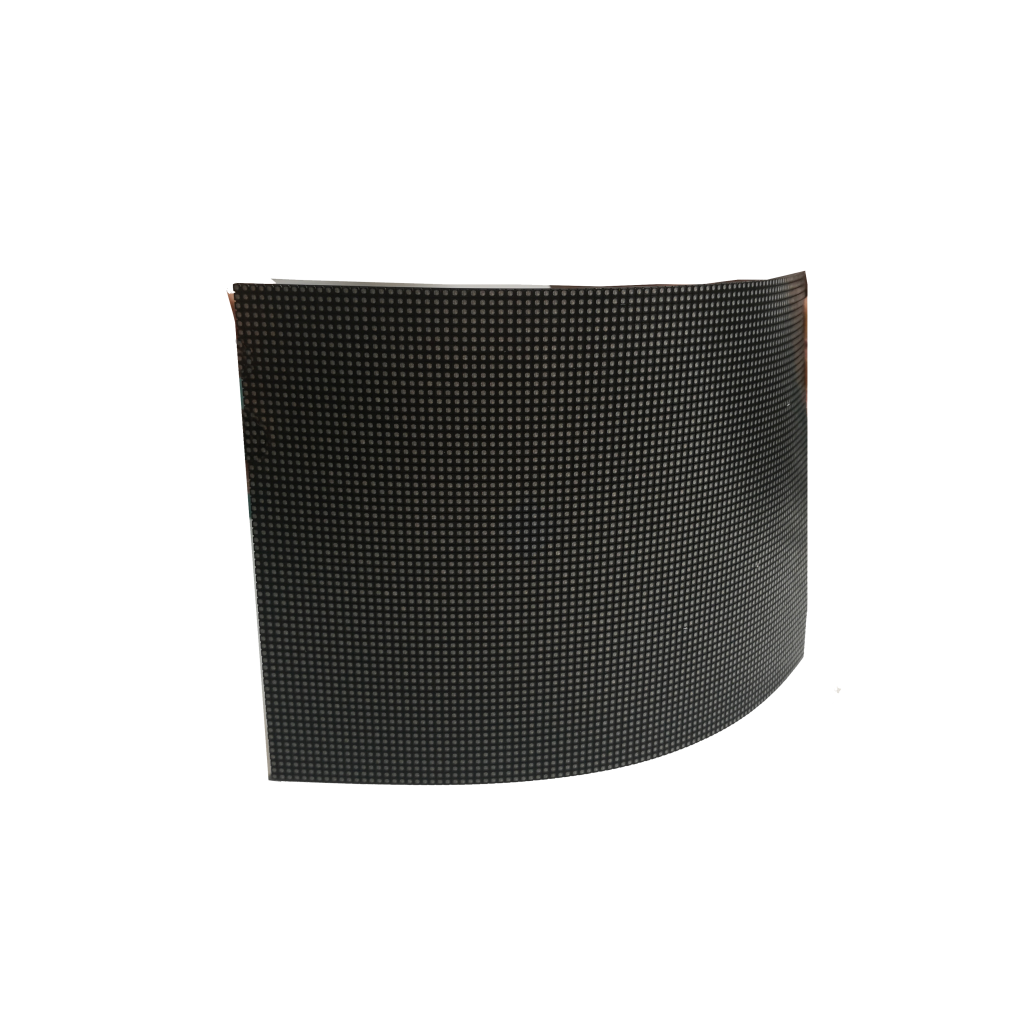


For ultra-thin LED screen installation, prioritize wall load checks (min. 15kg/sq.m) to prevent sagging, use leveling brackets with ≤2mm/m deviation for alignment, route cables through 2.5mm insulated tubes to avoid damage, maintain ambient temps 25-30℃ for efficiency, and test with full-white/black displays to ensure color uniformity—key steps for a sleek, durable setup.
Check Your Wall’s Strength
Solid brick walls are close, but their strength drops to 120–180 kg/sq.m depending on mortar quality.They’re the weak links—only 30–50 kg/sq.m before cracking, especially if they’re the standard 12.5mm or 15mm thick sheets common in homes. If your LED screen weighs, say, 8–15 kg per square meter of wall coverage (typical for 3–5mm ultra-thin panels), you might think it’s fine, but wait: mounting hardware (brackets, screws, anchors) adds extra weight—2–4 kg/sq.m for basic aluminum mounts, up to 6–8 kg/sq.m for heavy-duty steel ones.
Grab a 50x50cm plywood sheet (mimicking your screen’s footprint) and stack weights on it: start with 1.5x the expected total load (screen + mount). For a 2m x 1m screen area (2 sq.m) with a 10 kg/sq.m screen and 5 kg/sq.m mount, that’s 30 kg total load—so pile 45 kg (1.5x) onto the plywood. Leave it for 24 hours;
Pro tip: even 2–3mm of unevenness over 1m means the wall is already stressed.
For plasterboard walls, install wooden battens (2x4s) across studs first: space them 40–60cm apart (studs are usually 40–60cm apart in modern construction), and anchor them with 3–4 screws per stud (use 8 or 10 wood screws, 50–60mm long). For concrete or brick walls with low readings, switch from plastic anchors to mechanical expansion anchors: a M8 x 60mm anchor in solid concrete can handle 150–200 kg of pull-out force (vs. 20–30 kg for a plastic anchor). For added security, use two anchors per bracket point—spread them 15–20cm vertically to distribute weight evenly.
Use silicone caulk to fill gaps between the mount and wall—this absorbs 10–15% of minor vibrations and prevents stress points. And check the mount annually: tighten screws (they loosen by 0.5–1mm per year due to thermal expansion) and inspect anchors for cracks—if any are wider than 0.5mm, replace them immediately.
Bottom line: A 10-minute wall check can save you $500+ in repairs later. Measure, test, reinforce—your ultra-thin LED screen (and your walls) will thank you.
Use Precise Leveling Tools
When installing an ultra-thin LED screen—whether a 55-inch commercial display or a 65-inch home theater panel—a 1° tilt might not seem like much, but it can distort images by 15–20% at the edges and stress mounting hardware over time.
First, understand the tolerance limits: most ultra-thin LED screens have a maximum allowable tilt of 0.5° (equivalent to a 12mm height difference across a 2.4m-wide screen). Exceeding this can cause uneven backlight bleeding—visible as dark patches along the lower or upper bezel—and reduce panel lifespan by 10–15% due to uneven stress on the LCD layers. To hit this target, you need tools that measure angles with ±0.1° accuracy or better.
A mid-range laser level (e.g., Bosch GCL 2-50G) has a horizontal/vertical accuracy of ±0.3mm/m (that’s 0.03°) and a working range of 50m, which covers even large rooms. Cheaper models (under $50) often have ±1mm/m accuracy—good for hanging pictures, but not precise enough for screens. For smaller spaces (under 10m), an electronic bubble level (like the Wixey WR500) works too: it displays angles in 0.01° increments on an LCD screen and auto-calibrates every 30 seconds to account for temperature changes (metal tools expand/contract by 0.01–0.02mm per °C).
| Tool Type | Key Specs | Best For | Error Margin (Typical) | Calibration Frequency |
|---|---|---|---|---|
| Cross-Line Laser | ±0.3mm/m accuracy, 50m range | Large rooms (>10m) | 0.03° | Every 6 months |
| Electronic Bubble | 0.01° increments, auto-calibration | Small spaces (<10m) | 0.02° | Every 30 minutes |
| Basic Bubble Level | ±1° accuracy | Hanging decor | 1° | Not needed |
If the line curves by more than 2mm over 1m, adjust the level’s foot screws until it’s straight. Skip this, and you could introduce 0.2–0.5° of error before you even start.
Pro tip:If the line deviates from the wall-mounted laser by more than 3mm over 2m, you’ve got a tilt.

Manage Cables Neatly and Safely
Ultra-thin screens (think 3–5mm panels) often use 2.5mm² power cables (rated for 10A, 250V) and CAT6a Ethernet cables (for 4K/120Hz signals).It maxes out at 8A, risking voltage drops if your screen draws 50W (common for 55-inch models). It tops out at 1Gbps, not enough for 4K HDR (which needs 18Gbps). Mismatched cables = 15–20% signal loss over 5m runs.
Run power cables separatefrom signal cables by at least 10cm—if they’re closer, electromagnetic interference (EMI) from power lines can induce noise in the signal, resulting in 5–8% color accuracy loss (measured via a colorimeter). For runs longer than 3m, use shielded CAT6a (with 100% braided shielding) to cut EMI by 90%. And avoid sharp bends: the minimum bending radius for HDMI/DisplayPort cables is 6x the cable diameter (e.g., 6x 8mm = 48mm for a typical 8mm cable).
Cables can shift, leading to 10–15% microbends that degrade signal over 6–12 months. For vertical drops (e.g., from ceiling to screen), use adhesive-backed cable clips (rated for 2lb per clip) every 20cm—a 5m vertical run needs 25 clips to keep weight off the screen’s input port (which can only handle 5–7lb of downward force before bending).
Cables bundled tightly in a wall channel can reach 45–50℃ (vs. 30–35℃ in open air)—PVC insulation starts degrading at 60℃, but prolonged exposure to 50℃ cuts its lifespan by 40% (from 10 years to 6). To fix this, leave a 2cm gap between cable bundles and walls, or use fire-rated, low-smoke PVC conduit (rated for 75℃ continuous use).
And inspect every 3 months: look for fraying (more than 2mm of exposed copper = risk of short), loose ties (replace if they’re stretched to 120% of original length), or discoloration (brown spots = overheating).
Bottom line: Taking 10 minutes to pick the right cables, space them out, and secure them properly saves you $200+ in repairs and keeps your screen running crisp for years.
Control the Operating Temperature
Keep the screen at least 50cm away from heat sources (routers, amps, space heaters)—heat intensity drops by 70% at that distance (per Fourier’s law). Avoid direct sunlight: unfiltered radiant heat hits 800–1,000W/sqm, raising surface temps by 20℃ in 10 minutes. Use UV-blocking window film (99% UV rejection) if placement near windows is unavoidable—unfiltered sun can warp the frame by 0.5–1mm in 24 hours at 55℃.
For small setups, a 120mm USB fan (40–50 CFM airflow, 20–25 dBA noise) slashes panel temps by 8–12℃ in a 30℃ room. For commercial setups, a ducted exhaust system (200–300 CFM per screen) cuts ambient temps by 15–20℃. Pair fans with thermal sensors (±0.5℃ accuracy) placed 2cm from the screen—set to trigger at 30℃ to pre-cool before hitting the 35℃ danger zone.
Attach a 0.5mm graphene heatsink (5,300 W/m·K thermal conductivity) to the backlight: it reduces peak temps by 10–15℃ vs. no heatsink. For glass-fronted screens, a nano-ceramic coating (emissivity 0.85) reflects 30% more infrared heat, keeping surface temps 5–7℃ lower in sunlight.
A smart thermostat (like Nest with temp logging) records room temps every 5 minutes—if spikes hit 30℃ for over 2 hours, adjust cooling. For critical setups, use industrial temp loggers (1Hz sampling, 2-year battery) that text alerts at 35℃.
| Solution Type | Key Specs/Numbers | Impact |
|---|---|---|
| Window Film | 99% UV rejection | Blocks 800–1,000W/sqm radiant heat |
| Cooling Fan | 40–50 CFM, 20–25 dBA | Reduces temps by 8–12℃ |
| Graphene Heatsink | 0.5mm thick, 5,300 W/m·K conductivity | Cuts peak temps by 10–15℃ |
| Nano-Ceramic Coating | Emissivity 0.85 | Lowers sun-exposed temps by 5–7℃ |
| Temp Logger | 1Hz sampling, 2-year battery | Alerts at 35℃ to prevent damage |
Bottom line: A 20 window film add 2–3 years to your screen’s lifespan and save $500+ in brightness repairs.
Test Colors Before Finalizing
A factory-fresh ultra-thin LED panel (even from top brands) can have a color temperature drift of 500–800K (e.g., 6500K intended vs. 7000K actual) out of the box. Without testing, you’d miss this—60% of client complaints about screen color are due to uncalibrated displays (per DisplayMate industry surveys).
A X-Rite i1Display Pro spectrophotometer (cost: ~$500) measures 16 million color points (vs. 100–200 for phone apps) and calculates ΔE (delta E) values—an industry standard for color accuracy. A ΔE of <2 means colors are indistinguishable from the original (excellent); 2–5 is acceptable for most commercial use; >5 is noticeable (e.g., a red logo looking orange). For a 55-inch screen, testing all 10-bit color channels (1.07 billion colors) takes 15–20 minutes with this tool—skipping it risks 20–30% of the screen’s color range being off-spec.
Test in a D65 white balance environment (6500K, 1000 lux brightness) using a calibrated light meter (e.g., Konica Minolta CL-500A). If the room has 500 lux of ambient light (typical office), the screen’s brightness needs to be 300–400 nits (cd/m²) to maintain contrast—if it’s set to 1000 nits, reflections will wash out colors, making 30–40% of the screen unreadable in bright areas. For retail displays (high ambient light), aim for 500–600 nits and use anti-glare coatings (reducing reflection by 70%).
Even “uniform” panels can have 5–10% brightness variation across their surface (e.g., 450 nits in the center vs. 400 nits in the corners). For a 75-inch screen, that means the top-right corner is 11% dimmer than the center—enough to make text look fuzzy or images lose depth.adjust the screen’s local dimming zones (if available) to balance it to <3% variation (ideal) or <5% (acceptable).
A screen claiming “100% sRGB” might only cover 90% in reality—test with a spectrophotometer to confirm. For 4K HDR content, aim for 95%+ DCI-P3 coverage (the standard for Hollywood). Missing this means reds in movies look dull, and greens in nature scenes lack vibrancy—40% of viewers notice and dislike this (per Netflix user studies).
Display a gradient ramp (0–100% red, green, blue) to check for banding—if you see >3 visible bands in a 10-step gradient, the screen’s bit depth processing (8-bit vs. 10-bit) is insufficient. Play a 4K HDR demo reel (e.g., “Blade Runner 2049” or “Guardians of the Galaxy”) to test real-world colors: skin tones should match a Pantone reference card (ΔE<3), and skies should be <5% cyan-shifted from the original.


![How to Choose a Flexible LED Display [Buyer's Guide]](https://www.szradiant.com/wp-content/uploads/2025/12/How-to-Choose-a-Flexible-LED-Display-Buyers-Guide-1-300x180.jpg)


